 GitLab Pipelines provide the ability to define a build workflow, which per your requirements may include calls to AWS infrastructure.
However, for those AWS calls to work you need to establish an IAM identity. In the past, you would have to rely on AWS access keys in CI/CD variables, or applying an IAM role to the compute of a self-managed GitLab Runner.
A better way is to use the GitLab OIDC integration, which generates a signed JWT token that can be validated by the AWS STS and exchanged for short-lived credentials when the pipeline runs.
Overview
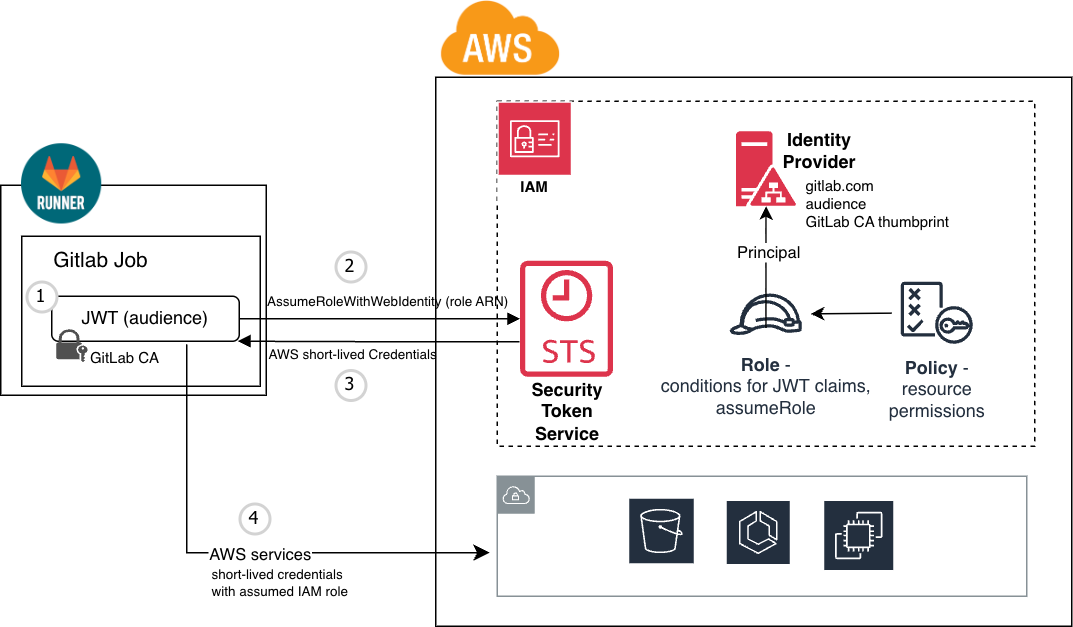
As a prerequisite, a trusted IAM Identity Provider is created on the AWS side for gitlab.com and retrieves the root CA certificate thumbprint that is used for verification of signed JWT coming from GitLab.
An IAM role that governs the permissions on a set of AWS resources is created and lists this Identity Provider as its principal. This role defines conditionals on the incoming JWT claim such as audience, repository, and branch.
Then when a GitLab pipeline is run, a JWT token signed by GitLab is injected into the job context. This is sent to the AWS STS (Security Token Service) for authentication. In OIDC terms, GitLab is the Identity Provider and AWS is the Relying Party.
If the JWT claims match the IAM role conditions AND is signed by GitLab, short-lived AWS credentials are provided back to the GitLab pipeline action.
This set of short-lived credentials can then be used to invoke AWS service calls, limited by the policy permissions of the assumed IAM role.


AWS infrastructure
As a prerequisite, we need to create the AWS resources that support this OIDC federated trust:
- AWS Identity Provider
- IAM Role
- IAM Policy
This could be done manually or via AWS CLI calls, but we will use Terraform in this article. Here is the full terraform definitions for the snippets below.
Create Identity Provider
The aws_iam_openid_connect_provider is used to create the AWS Identity Provider.
data "tls_certificate" "gitlab" {
  url = "https://gitlab.com/oauth/discovery/keys"
}

resource "aws_iam_openid_connect_provider" "gitlab" {
  url             = "https://gitlab.com"
  client_id_list  = ["https://sts.amazonaws.com"]
  thumbprint_list = [data.tls_certificate.gitlab.certificates.0.sha1_fingerprint]
}
The ‘client_id_list’ is the ‘Audience’ identifier. This is a unique identifier (not an actual URL target), and should be the URL of the entity evaluating the JWT, “https://sts.amazonaws.com”.
Create IAM Role
Create an IAM role that uses the newly created Identity Provider as a principal, and allows AssumeRoleWithWebIdentity when the audience and GitLab repository project path match.
resource "aws_iam_role" "gitlab_ci_readwrite" {
  name = "gitlab-oidc-role-s3-readwrite"

  # IAM 'trust relationship' tab - who can assume this role
  assume_role_policy = jsonencode({
  "Version": "2012-10-17",
  "Statement": [
    {
      "Effect": "Allow",
      "Principal": {
        "Federated": "${aws_iam_openid_connect_provider.gitlab.arn}"
      },
      "Action": "sts:AssumeRoleWithWebIdentity",
      "Condition": {
        "StringEquals": {
          "gitlab.com:aud": "https://sts.amazonaws.com"
        },
        "StringLike": {
          "gitlab.com:sub": [
            "project_path:gitlab-pipeline7091038/aws-auth/gitlab-pipeline-aws-oidc-auth:ref_type:branch:ref:*""
          ]
        }
      }
    }
  ]
  })

} # aws_iam_role
The ‘StringLike’ and wildcard “*” usage allows for any branch in this repository to assume the IAM role. The value “gitlab-pipeline7091038/aws-auth/gitlab-pipeline-aws-oidc-auth” is clearly the path to my example repository and needs to be changed to match your environment.
Associate IAM policy with role
Assign the IAM role policy that defines which AWS resources and permissions are being granted to the IAM role. In this case, we grant full privileges to S3 storage.
resource "aws_iam_role_policy" "gitlab_readwrite_policy" {
  name = "gitlab_oidc_readwrite_policy"
  role = aws_iam_role.gitlab_ci_readwrite.id

  policy = jsonencode({
    "Version": "2012-10-17",
    "Statement": [
        {
            "Effect": "Allow",
            "Action": [
                "s3:*"
            ],
            "Resource": "*"
        }
    ]
  })

} # aws_iam_role_policy
Running example terraform
Use the Terraform scripts from my GitLab example project.
git clone https://gitlab.com/gitlab-pipeline7091038/aws-auth/gitlab-pipeline-aws-oidc-auth.git
cd gitlab-pipeline-aws-oidc-auth/aws-infra

# manually change terraform.tfvars to match your GitLab repository

# establish aws credentials
aws login

# create AWS resources described above (Identity Provider, IAM)
terraform init
terraform plan
# note the ouput IAM role ARN, which is needed by workflow
terraform apply
GitLab Workflow
 On the GitLab side, now we need to craft a GitLab workflow definition that get the GitLab JWT injected into an action, does the OIDC exchange with AWS, and uses the returned short-lived credentials to make general AWS API calls.
Template job for AWS authentication
By creating a template job in our .gitlab-ci.yml (job beginning with period), we can easily reuse this logic in multiple actions.
# template job to capture boilerplate steps of calling AWS api
.aws-login:
  image: registry.gitlab.com/gitlab-org/cloud-deploy/aws-base:latest
  id_tokens:
    GITLAB_OIDC_TOKEN:
      aud: $OIDC_AUDIENCE
  before_script: |
    mkdir -p ~/.aws
    echo "${GITLAB_OIDC_TOKEN}" > /tmp/web_identity_token
    echo -e "[default]\nregion=${AWS_REGION}\nrole_arn=${AWS_ROLE_ARN}\nweb_identity_token_file=/tmp/web_identity_token" > ~/.aws/config
The template above has the GitLab runner inject a JWT token with a specific OIDC_AUDIENCE into the job context, which then allows us to create a basic AWS configuration file at “~/.aws/config”. This file location and format are what is expected by the AWS CLI.
Job that uses AWS authentication
An job can then extend this template like below to enable AWS authentication, and then make AWS CLI calls to create S3 buckets, upload files to S3, etc.
test-aws:
  stage: build
  extends: .aws-login # include template that takes care of AWS auth
  script: |
    aws s3 mb s3://$S3_BUCKET_NAME --region $AWS_REGION || true # create s3 bucket
    echo "pipeline: $CI_PIPELINE_ID job: $CI_JOB_NAME date: $(date -u +'%Y-%m-%dT%H:%M:%SZ')" > test.txt
    aws s3 cp test.txt s3://$S3_BUCKET_NAME/test.txt
    echo "just UPLOADED test.txt to s3 bucket $S3_BUCKET_NAME"
The AWS CLI picks up the “~/.aws/config” file, because this is its known default location.
Here is the full .gitlab-ci.yml example.
Create workflow variables
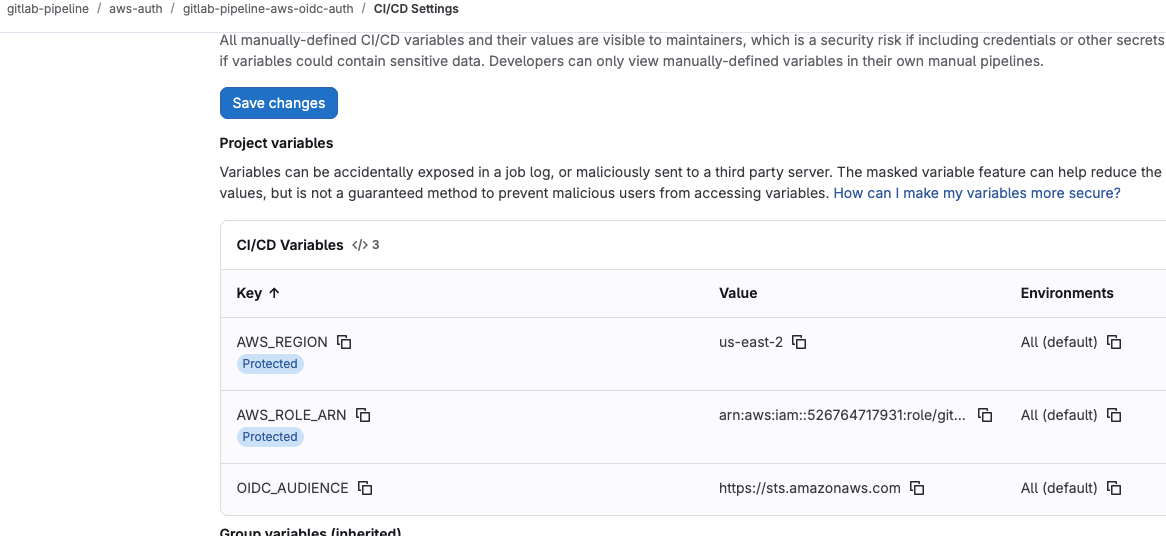
There are several variables used in the workflow definition above that need to be set at the GitLab repository/group level. Setting them as variables (instead of hardcoding into the workflow) allows more flexibility.
In GitLab, navigate to Settings > CI/CD > Variables, “Add variable”.
Create the following variables:
- AWS_REGION = us-east-1 or any other region where you want S3 bucket created
- AWS_ROLE_ARN = arn:aws:iam::xxxxxxx:role/gitlab-oidc-role-s3-readwrite (role ARN to be assumed)
- OIDC_AUDIENCE = https://sts.amazonaws.com
Invoke workflow
You can invoke the example GitLab workflow either by pushing to the repository, or navigating to Build > Pipelines, and “New pipeline”.
The invoked jobs will exercise the JWT token injection, OIDC exchange, then use the short-lived credentials to make calls to S3 as a test.

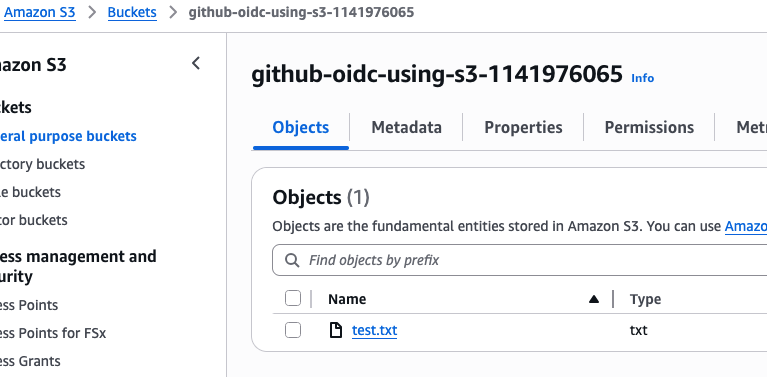
Navigating to Amazon S3 >Buckets will show the new bucket and “test.txt” content just uploaded by the GitLab job.
REFERENCES
GitLab, Configure OpenID Connect in AWS
GitLab docs, Configure a conditional role with OIDC claims
GitLab docs, OpenID Connect (OIDC) Authentication using ID Tokens
AWS, Setting up OpenID Connect with GitLab CI/CD
AWS create-open-id-connect-provider
Firefly, Why use OIDC for secure GitLab CI/CD
Configure OpenID Connect (OIDC) between AWS and GitLab
github docs, openid-connect explanation
GitLab docs, Use OpenID Connect as auth provider
GitLab docs, Test OIDC/OAuth with your client app
GitLab issues #17073, AWS has pre-loaded CA for GitLab trust
GitLab repo example of terraform code to create OIDC and IAM policy and document
Calvine Otieno, Terraform Pipeline with Gitlab CI and OpenID Connect
Yakuphan, Integrating GitLab CI/CD Pipelines with AWS using OIDC
Dhruv Mavani, GitLAB CI/CD Pipeline for AWS EKS deployment with AWS OIDC (custom gitlab runner)
Gav Harris, Secure CI with GitLab and HashiCorp Vault
Secure your Terraform deployment on AWS with GitLab-CI and Vault (pipeline side)
NOTES
gitlab discovery endpoint
https://gitlab.com/.well-known/openid-configuration
get public key location
curl https://gitlab.com/.well-known/openid-configuration -s | jq .jwks_uri -r
# get hex encoded sha1 hash of cert
echo quit | openssl s_client -connect gitlab.com:443 2>/dev/null | openssl x509 -noout -fingerprint | cut -d= -f2 | sed -e s/://g | tr '[:upper:]' '[:lower:]'